
Updated . A 5-minute read by the BundlePilot team at Boldnsmart.
BundlePilot adds this to your product pages. See it on the Shopify App Store.
Why put the message on the card, not on the order
Shopify’s cart note is one free-text box for the whole order. Shoppers use it for delivery instructions, gate codes and gift messages alike, and you have to work out which is which at packing time.
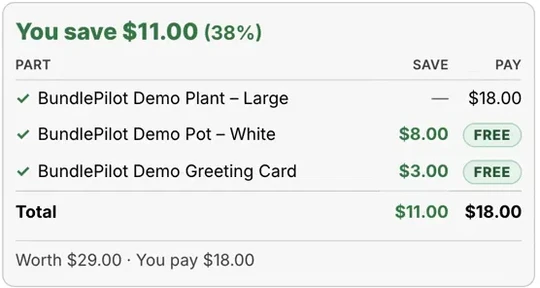
A message field on the card item keeps the words with the card they will be written on. The card is a real product in the bundle, so a premium card can carry its own surcharge, and its stock goes down when it is used.
Set it up step by step
- Install BundlePilot
Install it from the Shopify App Store. The setup guide on Boldnsmart walks through the install and the theme editor.
- Create the bundle
Create a bundle, give it a gift-friendly title and choose the main product. Have a greeting card product ready, with each design as a variant and inventory tracking switched on.
- Add the card as a complimentary product
Add your greeting card. If you offer several designs, let the slot use the card’s variants, and add a surcharge to a premium design if it costs more.
- Tick Personal message on the card
Switch on Personal message for the card item and set a maximum length that fits the card you write on. Only that item gets the message box.
- Put the builder on the product page
Switch on the Bundle Builder block and the cart lines embed as in the setup guide on Boldnsmart.
- Test it and find the message
Place a test order with a message. It shows once on the thank-you and order status pages, and the Bundle orders page in BundlePilot lists each order’s picks with the message, ready to copy onto the card.
Ready to add a message box to your gift bundles?
See messages arrive: install BundlePilot from the Shopify App StoreTips for messages you will hand-write
- Set the maximum length by the card, not the screen. Write a long sample message on a real card first and count the characters that fit.
- Tell shoppers how the message arrives, for example “handwritten on the card inside the box”, so they write accordingly.
- Keep cards in stock. When the card’s stock reaches zero, the bundle shows Sold out.
- One address per order. Shopify checkout allows one shipping address per order on every plan, so a gift to three people means three orders, each with its own card message.
- Write the card before you seal the box, and check the order number against the packing slip.
A gift message is personal data written by your shopper. BundlePilot erases gift messages automatically 12 months after the order; details are in the privacy policy.